Notes
Notes is a personal productivity workspace within Kapost that enables the capture, organization, and management of information without interrupting ongoing work. Whether recording meeting notes, drafting content, tracking action items, or storing reference material, Notes provides a flexible environment with notebooks, pages, checklists, and search capabilities to keep information structured and easily accessible.
Designed to support continuous productivity, Notes remains available across sessions and instances, ensuring information is always within reach. All data stored in Notes is private to the individual account and cannot be viewed by other users. By combining note-taking, organization, and task management capabilities in one place, Notes supports a more streamlined and productive workflow, and reduce dependence on external productivity tools.
The Notes feature supports the following core capabilities:
-
Accessible from the top navigation bar
-
Multiple books and pages for organizing information
-
Rich text editor with support for images and links
-
Checklist functionality for task tracking
-
Important note markers and date-based organization
-
Global search across all books and pages
-
Auto-save functionality that preserves changes automatically
-
Resizable and movable workspace that stays available while working in Kapost
How it Works
Users can create, rename, and delete both books and pages as needed to manage their notes structure. The built-in HTML editor enables efficient and flexible note-taking, allowing users to format and organize notes effectively within each page. Users can organize books by dragging and dropping them to reorder based on priority or frequency of use.
To open Notes:
-
Click the Notes icon
 in the top navigation bar.
 -
The Notes feature open as a floating modal window. This creates a default book and a page automatically.
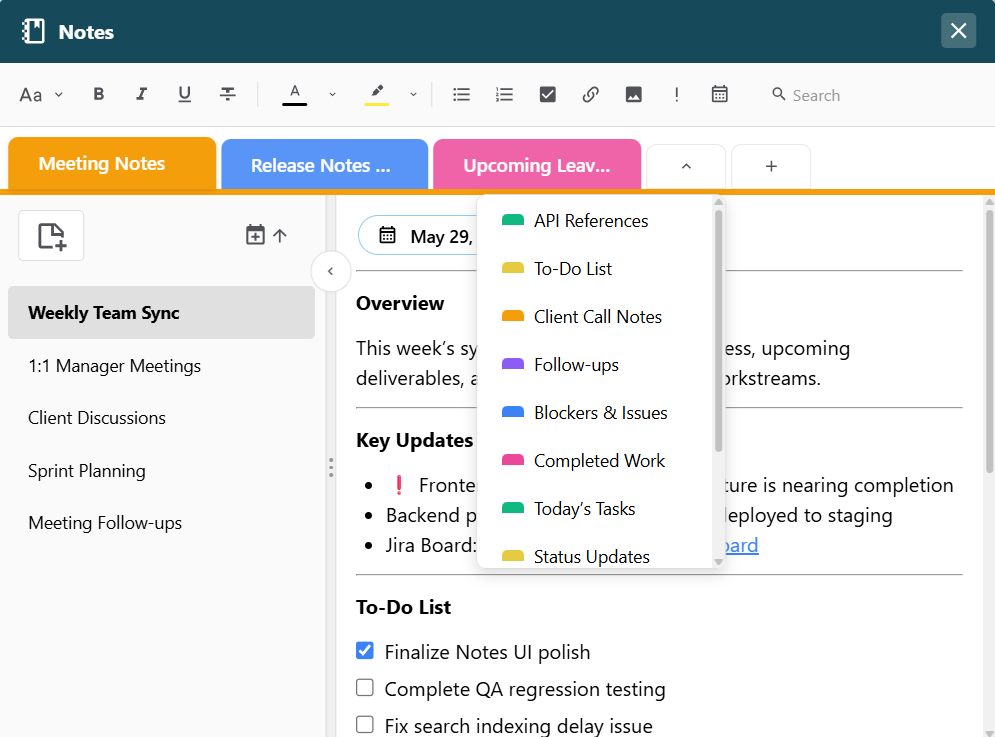
Users can continue working in Kapost while the Notes remains open in the background and can be dragged, repositioned anywhere, and resized within the Kapost interface.
Using the Notes
Creating a Book
-
Open Notes from the top navigation bar.
-
Click Add a Book or
 icon to create a new book.
 -
Double-click the book to enter a book title or rename it. This creates a default page automatically.
Creating a Page
-
Select a book.
-
Click the Add page icon
 to create a new page.
 -
Double-click the page to enter a page title or rename it.
-
Click the Sort icon
 to sort pages by the following:
-
Date Created
-
Date Modified
-
Alphabetical
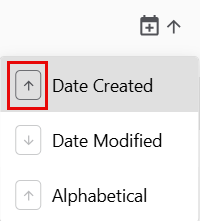
Note: To change the sort order, click the arrow next to the selected sort option in the drop-down. The arrow direction indicates the current sort order.
-
Deleting a Book or a Page
-
Locate the book or a page you want to delete.
-
Hover over the book tab and click the
 icon.
icon. -
In the confirmation modal, click Delete to delete the book.
Note: When a book is deleted, all associated pages are deleted as well.
-
Hover over the page tab and click the
 icon.
icon. -
In the confirmation modal, click Delete to delete the page.
Note:
-
If all pages within a book are deleted, the book will display an empty state indicating that no pages are available.
-
Book titles must be unique; duplicate titles cannot be saved.
-
If multiple books exist, users can click the
 icon to open a drop-down and access the remaining books.
 -
To view the full title of a book or page, users can hover over the respective tabs.
-
Hovering over a page tab displays the page's created and last modified date and time.
-
Pages panel can be fully collapsed by clicking the
 icon. The panel width can also be resized by dragging the panel boundary.
 -
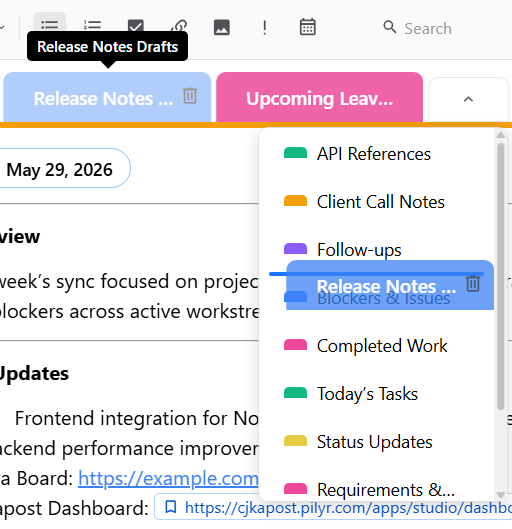
A book can be dragged and dropped directly into the drop-down containing additional books.

-
The Notes feature is fully user-specific and does not support sharing or collaboration.
-
Kapost links are displayed differently from other links, making them easy to identify at a glance.